Setting up a kitchen display system for a prepared foods counter replaces handwritten tickets and shouted orders with a synced screen workflow, and it's the single upgrade that keeps a hot bar or made-to-order (MTO) line from falling apart during a lunch rush in 2026.
- A kitchen display system routes kiosk, app, and web orders into one prep-line queue — skip it only if your counter runs a single order channel.
- Budget one to two weeks of staff training before running a kitchen display system at full counter volume.
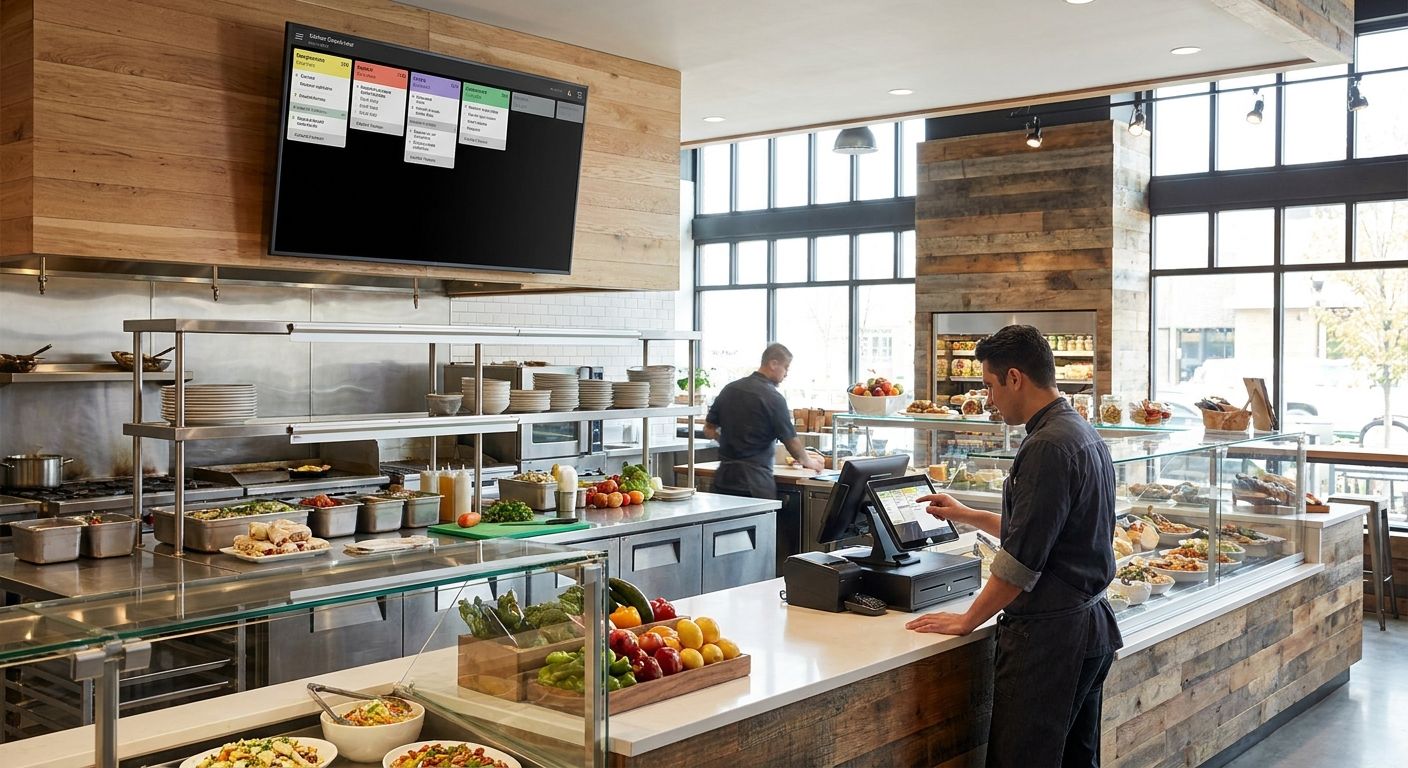
- Mount one screen per station at eye level; a single shared screen creates a bottleneck once ticket volume climbs past slow-hour levels.
- Centralized order management across web, app, and kiosk channels is what prevents duplicate or missed tickets, not the screen itself.
Why this matters
A prepared foods counter that still runs on paper tickets loses time on every handoff: someone writes the order, someone reads it, someone re-keys it if it came from a kiosk or app. Every one of those handoffs is a place an order gets lost, duplicated, or made wrong.
A kitchen display system for deli and MTO kitchens removes the re-keying step by pulling orders from every channel — in-store kiosk, mobile app, website — into one screen the kitchen actually watches. That's the whole point of the setup: fewer handoffs, fewer places for an order to break.
What you'll need
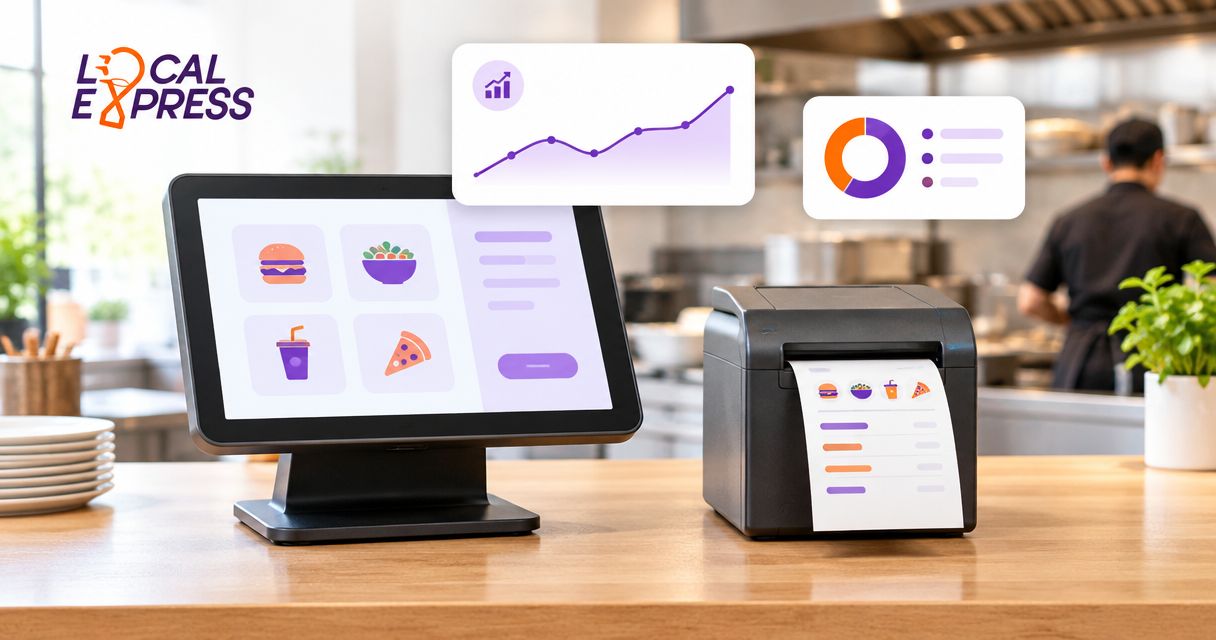
- A measured footprint at the prep line for at least one screen per station (15-inch or larger touchscreens are the standard size for prep-line visibility)
- A wired network drop at the counter, or Wi-Fi rated for real-time order sync — don't run a kitchen display system on a shared, unmanaged connection
- A single point where kiosk, app, and web orders can be routed into one system, rather than three separate ticket streams
- A bump bar or touchscreen input at each station so cooks can mark items fired, in progress, and complete
- Menu and modifier data mapped ahead of time — sizes, toppings, dietary tags — so tickets display correctly on day one
- A staffing window of one to two weeks to train the counter team before going live at full volume
The steps
1. Map every order channel before you touch hardware
List every way a customer can place a prepared foods order today: in-store kiosk, mobile app, website, phone-in, walk-up counter. A kitchen display system is only as good as what feeds it, and if your order management software for MTO kitchens isn't already consolidating those channels, the screen at the counter just becomes a fourth place to check. Skipping this step is the most common reason a 2026 KDS rollout stalls in week one.
Common mistake: treating the kiosk and the website as two separate order queues instead of one feed.
2. Decide screen count and placement for the line
One screen per station beats one shared screen for any counter running more than a handful of orders per hour. Mount screens at roughly 50 to 55 inches off the floor, angled so cooks read them without turning their whole body away from the line.
Common mistake: hanging a single screen at the pass and expecting every station to read tickets off it — this is the bottleneck that makes staff go back to paper.
3. Connect the display to your order management system
This is the integration step that makes the setup work. Centralized order management across web, app, and kiosk channels is what turns three separate order sources into one ticket queue on the screen — without it, you've bought hardware, not a system.
Confirm order status updates flow both directions: a customer placing a pickup order through the app should see it move from "received" to "preparing" to "ready" as the kitchen bumps each stage.
4. Set ticket routing rules and prep-time targets
Assign a target ticket time per item category — hot bar items typically run faster than made-to-order sandwiches or bowls with multiple components. Build in color-coded alerts so a ticket sitting past its target time flags before a customer complains.
Common mistake: launching without escalation rules, so a stuck ticket sits invisible until the customer asks where their order is.
5. Configure bump and expo actions
Each station needs a clear "fired, in progress, complete" action, and if the counter runs an expo step, that screen should show the aggregate view across every station so one person can confirm a full order is ready before it goes out.
6. Run a soft launch during off-peak hours
Go live for one shift at reduced volume before pushing the kitchen display system into a full lunch or dinner rush. Watch for tickets that display incorrectly, modifiers that don't map, and any lag between order placement and ticket appearance.
See how a KDS fits your deli
Sync kiosk, app, and web orders into one prep-line queue.
7. Train counter staff on the new workflow
Budget one to two full weeks before the team is running the kitchen display system without falling back to paper. Shadow shifts where an experienced staff member works next to a new hire on the screen for the first several days cut the relapse rate dramatically.
Common mistake: a single one-hour training session the morning of launch — staff under lunch-rush pressure revert to whatever they know fastest, which is usually paper.
8. Monitor and tune after go-live
Thirty days after full launch, pull ticket time data and error rates and compare them against your paper-ticket baseline. This is also the point to run the numbers on hardware payback — the same math used to calculate ROI on a self-service kiosk applies to a kitchen display system setup, since both reduce labor time per order.
Troubleshooting
- Tickets stack up out of order. Check your routing priority rules — items with shorter prep times should surface ahead of longer builds, not sit in strict first-in order.
- Screen is unreadable under kitchen lighting or glare. Reposition the mount away from direct overhead light or switch to an anti-glare screen; this is a placement fix, not a hardware failure.
- Orders drop during a Wi-Fi blip. Move to a wired connection at the counter or confirm the kitchen display system has a local caching mode that holds tickets through a brief network drop.
- Staff keep reverting to handwritten tickets. Shorten the training cycle into daily 10-minute refreshers instead of one long session, and post a laminated cheat sheet at each station for the first two weeks.
- Duplicate tickets appear from web and kiosk orders. This is almost always a sync issue in the order management layer, not the display — confirm every channel routes through the same centralized system before troubleshooting the screen itself.
- Expo screen doesn't reflect station status. Verify each station is bumping tickets at the right stage; a missed bump upstream means the expo view never updates.
Tools and resources
- Kitchen display systems for grocery deli and MTO kitchens — the core setup reference for this build
- Prepared food ordering kiosks for grocery store delis — for counters adding self-service ordering ahead of the kitchen display
- A laminated station cheat sheet covering bump actions and escalation colors, printed before go-live
- A 30-day ticket-time report pulled from your order management system to measure the setup against your paper baseline
What to do next
Once the kitchen display system is running clean for a full week of peak volume, the next move is checking whether the hardware paid for itself. Local Express's guide on calculating ROI on a self-service kiosk walks through the labor-hour math that applies just as well to a kitchen display rollout.
FAQ
What is a kitchen display system for a prepared foods counter?
A kitchen display system is a screen-based ticket queue that replaces paper tickets at a deli, hot bar, or MTO counter, pulling orders from kiosk, app, and web channels into one view. It shows cooks what to make next and tracks each ticket from received to ready.
How much does a kitchen display system cost for a grocery deli in 2026?
Cost depends on screen count, station count, and whether it's bundled with existing order management software — check current pricing directly rather than relying on a flat number, since a one-station counter and a multi-station hot bar have very different setups. Screen hardware is typically the smaller line item compared to the order-routing software behind it.
Is a kitchen display system better than paper tickets for a hot bar?
Yes, for any counter running more than one order channel — a screen removes the re-keying step that happens when a kiosk or app order has to be manually written onto a paper ticket. Paper still works for a single-channel, low-volume counter, but it becomes the bottleneck once orders come from multiple sources.
How long does it take to set up a kitchen display system?
Hardware installation and system connection typically takes a few days, but budget one to two weeks of staff training before running the system at full counter volume in 2026. Rushing the training window is the most common reason staff revert to paper tickets after launch.
Can a kitchen display system sync orders from a kiosk, app, and website at once?
Yes, when it's connected to a centralized order management system rather than running as a standalone screen. Without that connection, each channel stays a separate queue and the display just becomes one more thing to check instead of solving the problem.
What screen size is best for a deli prep line?
A 15-inch touchscreen is the standard minimum for prep-line visibility, mounted at roughly 50 to 55 inches off the floor. Larger counters running multiple stations often add a second screen rather than sizing up one screen for the whole line.
Does a kitchen display system reduce order errors at a prepared foods counter?
It reduces errors caused by manual re-keying between order channels, since tickets from a kiosk or app appear on screen exactly as the customer entered them. It doesn't eliminate prep errors on its own — that still depends on staff training and clear modifier displays.
How many screens does a prepared foods counter need?
One screen per station is the standard setup for any counter running more than a handful of orders per hour in 2026. A single shared screen works only for very low-volume counters and becomes a bottleneck as soon as volume picks up.
One last thing
The screen is the visible part of a kitchen display system setup, but the order management layer behind it is what actually determines whether the rollout works. A counter that skips consolidating its kiosk, app, and web channels first will hang a nice screen on the wall and still lose tickets the same way it did on paper.