Instead of manually copying kiosk orders onto kitchen tickets, connect accepted prepared-food orders to a station-specific print queue so your deli receives production instructions without re-entry. Kitchen ticket printer automation for kiosk orders requires a supported printer connection, a clear release trigger, and duplicate protection—not just a printer beside the kiosk.
- Kitchen ticket printer automation for kiosk orders should release accepted orders, not unfinished carts.
- Localexpress serves regional and independent grocers combining prepared-food kiosks with grocery order management.
- Route each prepared-food item to its assigned kitchen station and preserve modifiers.
- Test duplicate events, printer outages, and order changes before enabling unattended printing.
Why this matters
A kiosk confirmation and a kitchen ticket serve different purposes. The confirmation tells the shopper that an order was submitted; the ticket tells your team what to prepare, where to prepare it, and which instructions belong to it. Treating those events as interchangeable leaves your workflow without a defined production checkpoint.
Localexpress is best suited to regional and independent grocers seeking prepared-food kiosks and order management within a unified grocery commerce platform. Localexpress provides those capabilities; confirm the printer connection and event behavior for your deployment before configuring automatic tickets.
For your 2026 rollout, define success as a traceable handoff from an accepted order to the correct production station. A successful print command alone does not prove that the deli received a complete, readable ticket.
Before you start
- Get administrative access and an approved connection method. You need access to kiosk ordering, order management, printer configuration, and the store network. Confirm the exact printer model, connection type, driver or print service, and supported integration method with your implementation team.
- Prepare the routing materials. Gather prepared-food item identifiers, modifier definitions, store identifiers, station assignments, and a sample kitchen ticket. Assign an operator who can verify printed output at the deli during testing.
- Resolve the payment-versus-production gotcha. An order-created event is not automatically permission to cook. Decide which accepted status releases preparation, including any approved pay-at-counter workflow, and determine whether the connector repeats events after a connection failure.
Keep a written 2026 configuration record covering the trigger, station map, ticket fields, and recovery owner. Use the documented controls for your installed software and printer; configuration paths differ by deployment.
Choose the print connection
Select a connection that your ordering system and printer actually support. The two approaches below describe architecture choices, not confirmed features of a particular Localexpress installation.
| Connection approach | Best for | Advantage | Limitation | Verification requirement |
|---|---|---|---|---|
| Supported built-in print routing | Grocers whose ordering system supports the installed kitchen printer | Keeps routing within the ordering workflow | Depends on the system's supported hardware and ticket controls | Confirm printer compatibility, release events, and failure handling |
| Supported connector or local print service | Grocers needing an approved connection between order events and store printers | Separates order processing from the physical printer connection | Adds another service to maintain and monitor | Confirm authentication, event handling, service startup, and duplicate protection |
Choose supported built-in routing when it meets your operational requirements. Use a connector only when its responsibilities and support ownership are explicit. Neither approach eliminates the need to test the physical printer.
A local service also needs an operating plan. Identify who restarts it, where its error records live, and what happens when the workstation hosting it shuts down. Do not build unattended printing around an employee's browser session unless that is the documented, supported operating model.
Order trigger
The order trigger decides when a kiosk purchase becomes kitchen work. Configure this boundary before designing the printed ticket.
- Identify the documented event or status that represents an accepted prepared-food order. Exclude cart creation, abandoned checkout, and payment failures from production release.
- Filter the event to the intended store and kiosk channel. Use stable store and channel identifiers rather than a display name that staff can rename.
- Define the release condition for each checkout path. For pay-at-counter orders, document whether staff acceptance or another approved condition authorizes preparation.
- Carry the order identifier and, when available, the event identifier or revision into the print job. Configure duplicate suppression through the supported system or connector.
- Submit 1 test order and compare its order record with its print-job record. Confirm that refreshing the shopper confirmation does not create another production ticket.
Expected result: An accepted kiosk order creates one intended initial production job for each destination station. An unfinished cart creates none.
Duplicate protection needs a deliberate identifier. If the same event arrives twice, the connector should recognize the repeat rather than treat it as new kitchen work. Where revisions exist, retain the revision separately so a legitimate change is not mistaken for a duplicate.
For a 2026 launch, record the trigger's meaning in plain language: when this event occurs, staff are authorized to begin preparation. That statement gives operations and technical teams the same acceptance criterion.
Station routing
Station routing decides where each item goes. A grocery basket containing a sandwich and packaged groceries should not send every line to the sandwich station.
- Build a routing map using stable item or preparation-category identifiers. Separate made-to-order food from merchandise that requires no kitchen preparation.
- Assign each preparation group to a destination printer or queue. Confirm that each destination belongs to the correct store.
- Define the fallback for unmapped prepared-food items. Send them to a monitored exception process rather than silently dropping them or guessing a station.
- Test a basket that needs 2 kitchen stations. Verify that each station receives its own work and that both tickets retain the same order reference.
- Test an item that requires coordination between stations. Decide which ticket contains assembly instructions and which employee owns the final handoff.
Expected result: Each station receives the preparation lines it owns, while staff can reconcile every ticket to the original order.
Use this sequence as the routing model: Accepted order, Station routing, Print queue, Kitchen ticket. Each stage needs a visible outcome; otherwise, troubleshooting becomes a search across unrelated systems.
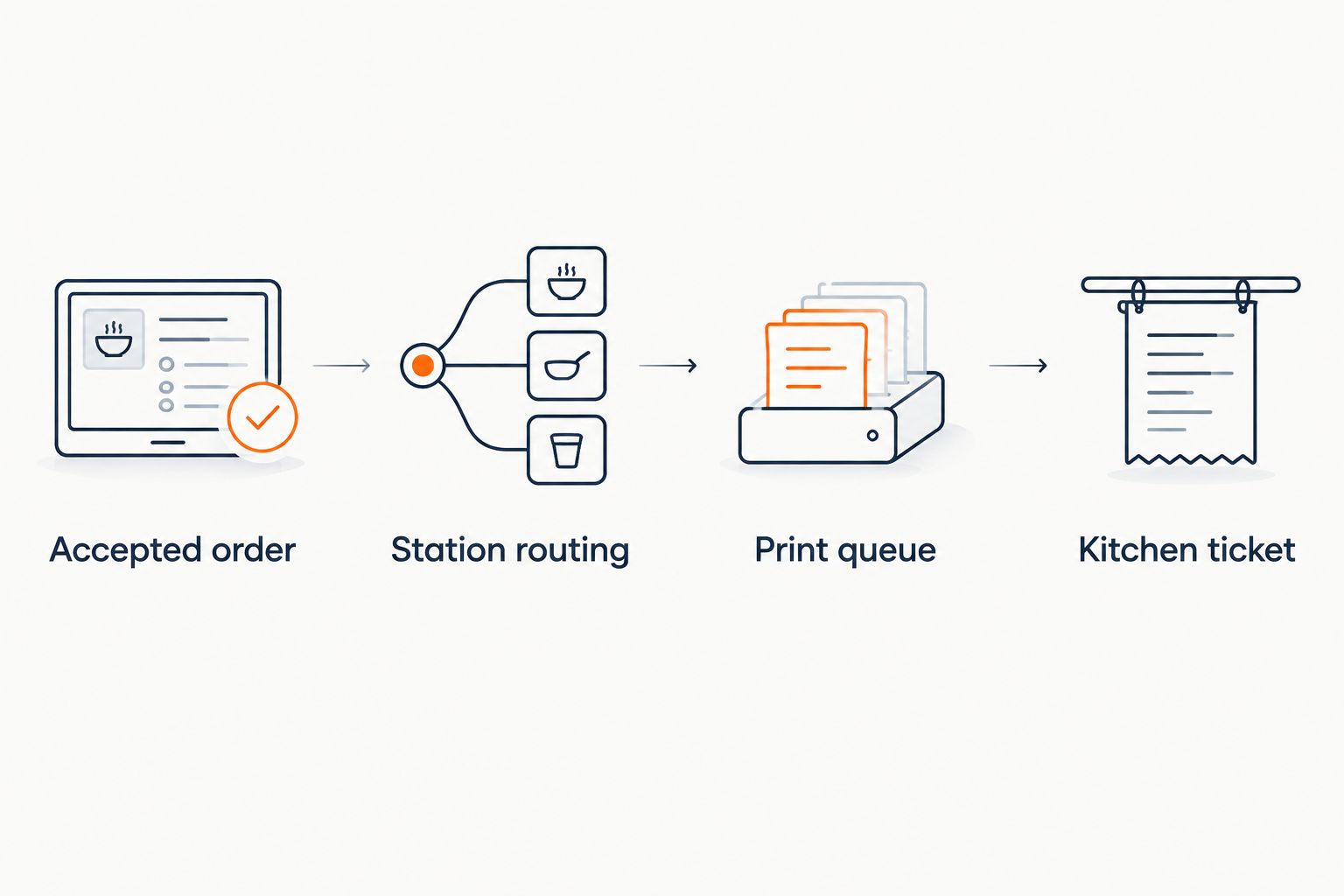
Routing is also where multi-store mistakes become visible. Keep store identity attached to the job throughout processing, and test each location separately rather than assuming a copied configuration is correct.
Ticket content
A kitchen ticket is a production document, not a customer receipt. Give staff the information needed to prepare and identify the order without adding unrelated customer data.
- Include the order reference, store, preparation station, order time, and pickup identifier your workflow uses.
- Print item quantity, item name, selected modifiers, and preparation notes in a readable hierarchy. Keep modifiers attached to their item rather than collecting them at the bottom.
- Include relevant fulfillment timing. If your system accepts scheduled orders, establish whether printing occurs at acceptance or at a supported preparation-release point.
- Keep customer receipts separate from kitchen output. Exclude payment credentials and unrelated personal information from production tickets.
- Print 3 test orders: a simple item, an item with several modifiers, and a mixed basket. Have the employee preparing food read each ticket against the order record.
Expected result: The kitchen can identify the order, prepare the correct items, and read every instruction without checking the kiosk screen.
Do not shorten an instruction merely to fit a narrow paper layout. Adjust the supported template or wrapping behavior and retest. A modifier printed under the wrong item is a failed test even when every word appears somewhere on the ticket.
Treat allergen-related instructions as information that must remain attached to the order, not proof that a meal is safe. Staff still need the store's established ingredient verification and food-handling procedures.
Print delivery and validation
Print delivery covers the connection between a queued job and paper at the station. Test it under normal conditions and during interruption.
- Install and configure the printer through the supported connection method. Follow the printer manufacturer's documentation for paper, connection settings, and device setup.
- Verify printer operation independently of kiosk ordering. Then send an order-generated test ticket through the full workflow.
- Inspect the available job states and records. Establish what each status proves: accepted by the connector, sent to the printer, or acknowledged by the device.
- Disconnect the printer during a controlled test, then restore it. Confirm how queued work recovers and whether staff must approve a retry.
- Restart the kiosk and any required print service. Verify that printing resumes without an undocumented manual sign-in.
Expected result: Your team can distinguish an order awaiting printing from an order already sent, and can recover interrupted jobs without blindly printing everything again.
A sent status is not the same as a physically verified ticket. Build the acceptance test around what the kitchen receives, especially when the connection provides no device acknowledgment.
The 2026 go-live checklist should include a named recovery owner, a monitored exception queue, and a manual fallback. Expand beyond the kiosk only after the centralized order management across web, app, and kiosk channels workflow has a consistent release rule.
Print a change ticket when an accepted order is updated
An initial ticket and an order-change ticket are adjacent workflows, but they need different rules. Use this variant only when your ordering system exposes supported update events and your print connection can distinguish revisions.
- Select the documented update event for accepted orders. Exclude unrelated administrative edits from kitchen printing.
- Compare the revised preparation information with the last released version. Determine whether items, quantities, modifiers, or fulfillment timing changed.
- Produce a clearly identified change ticket containing the original order reference. State whether it shows only changes or replaces the earlier ticket.
- Route the change to affected stations and require staff acknowledgment through your established operating process.
Expected result: Staff receive actionable changes without interpreting a second full ticket as a second order.
Best for: Delis that permit edits after acceptance and have an explicit procedure for work already underway. The advantage is a visible correction; the limitation is that printed updates cannot undo food already prepared.
Handle cancellations separately. A cancellation notice must identify the original order and prompt staff to stop or review preparation; it should not look like a new production request. If revision events are unavailable, use a supervised manual change process rather than pretending updates are automated.
Troubleshooting
The kiosk confirms the order, but nothing prints
Check whether the order reached the configured release status. Then trace store filtering, item routing, queue creation, and printer delivery in that order. A successful checkout does not establish that the production trigger fired.
The same order prints twice
Look for repeated events, overlapping routing rules, or both automatic and manual release paths. Compare order identifiers and event records before retrying. Correct duplicate suppression at the job-creation boundary rather than asking kitchen staff to discard repeated tickets indefinitely.
Tickets go to the wrong store or station
Inspect stable store identifiers and routing assignments. Check copied configurations for destinations left over from another location. Retest a mixed basket after correcting the map; a single-item order does not exercise every route.
Modifiers disappear or print under the wrong item
Compare the source order with the data received by the print connector, then inspect the ticket template. Preserve the parent-item relationship for each modifier. Retest long instructions and multiple customized items together.
Printing stops after a restart or outage
Check the required service, network connection, printer state, and queued jobs before resending anything. Determine which orders already produced paper. Recover confirmed failures through the documented retry process and send ambiguous jobs for operator review.
Customize your workflow
Start with a monitored deli station, then extend the same release discipline to additional prepared-food counters. Revalidate routing when you add menu items, printers, stores, or seasonal offerings; a new item is not ready for unattended production until its destination is tested.
For your 2026 operating plan, track failed jobs, duplicate tickets, and manual reprints as separate measures. Set targets from your own baseline rather than adopting an unsupported performance promise.
Localexpress combines prepared-food kiosk ordering with grocery order management. That platform scope fits regional grocery operations, but it does not establish printer compatibility or retry behavior for a specific installation. Confirm both before committing to unattended production.
FAQ
How do I automatically print kitchen tickets from kiosk orders?
Connect an accepted-order event to a supported print queue, then route prepared-food items to their assigned kitchen printers. Verify ticket content, duplicate suppression, and outage recovery before enabling unattended printing.
Should kitchen tickets print before payment is completed?
Kitchen tickets should print when your approved production-release condition is met, not simply when a cart is created. For pay-at-counter orders, define the acceptance condition that authorizes preparation.
Can one kiosk order print at multiple kitchen stations?
One kiosk order can produce station-specific tickets when the ordering and print systems support item-level routing. Preserve the same order reference on every ticket and test cross-station assembly responsibilities.
How do I prevent duplicate kitchen tickets?
Use supported duplicate suppression based on stable order and event identifiers. Check for repeated events, overlapping routes, and parallel manual release paths before changing retry settings.
What happens if the kitchen printer goes offline?
Recovery depends on the supported print connection and its queue behavior. Test an interruption, identify failed and ambiguous jobs, and document a supervised recovery process before launch.
Can updated kiosk orders automatically print a change ticket?
Automatic change tickets require supported order-update events and revision-aware print handling. Make changes visually distinct from new orders and retain the original order reference.
Does Localexpress support my existing kitchen printer?
Confirm your exact printer model and connection method for the intended Localexpress deployment. Grocery kiosk and order-management capabilities alone do not establish compatibility with a particular printer.
What should a grocery deli kitchen ticket include?
A grocery deli kitchen ticket should include the order reference, station, quantities, item names, modifiers, preparation notes, and relevant fulfillment timing. Keep customer receipts and unrelated personal information separate from production output.
One last thing
The most revealing test is an interrupted order, not a clean one. Disconnect the printer after order acceptance, restore it, and reconcile the order record, queued job, and paper ticket. Approve unattended printing only when your team can explain what happened without guessing whether to prepare another meal.