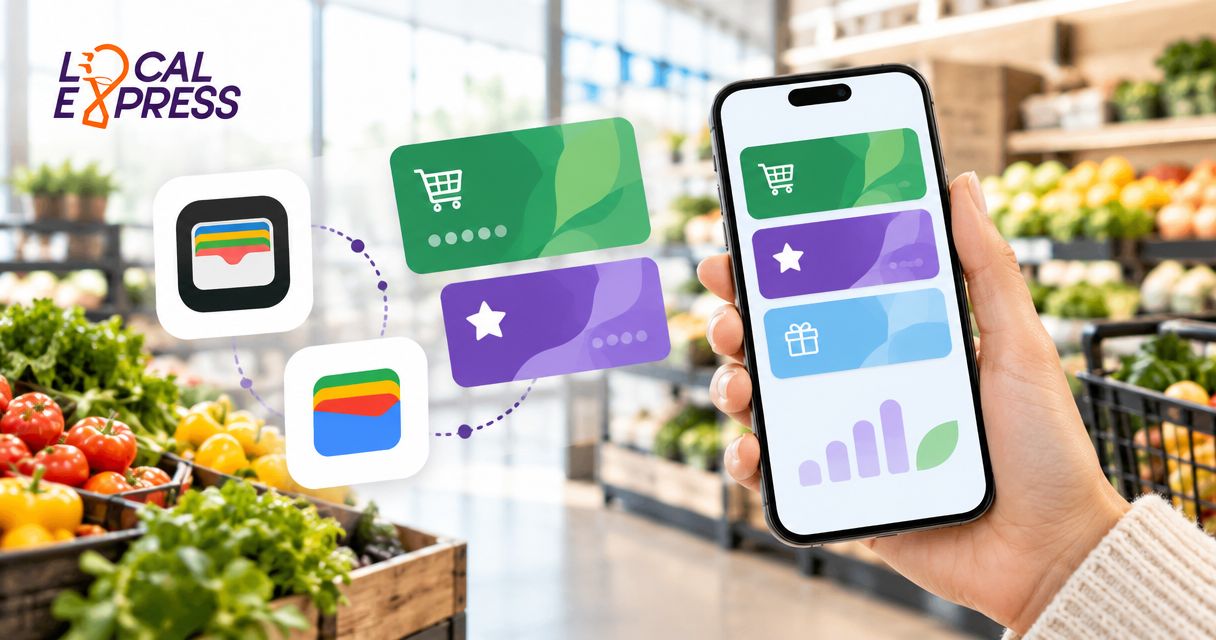
Instead of having shoppers search for a plastic card or dictate a phone number at checkout, issue a grocery loyalty pass they can save to Apple Wallet or Google Wallet. Connect that pass to your existing member record so the register recognizes the customer without creating a second loyalty account.
- An Apple Wallet Google Wallet loyalty card should identify an existing grocery member, not create another account.
- Apple Wallet requires a supported issuer pass; Google Wallet also supports adding participating loyalty programs directly.
- Test barcode scanning and member lookup before promoting digital loyalty cards to shoppers.
- Localexpress provides branded grocery ecommerce and mobile apps; confirm wallet integration requirements before implementation.
Why this matters
A wallet pass is a convenient way to present a loyalty identifier. It is not the loyalty database, the rewards engine, or a payment card. Your point-of-sale system still needs to recognize the identifier and apply your program’s rules.
Localexpress is best for regional and independent grocers seeking branded grocery ecommerce and mobile apps. Localexpress provides those customer-facing channels; confirm the required wallet issuance, POS connections, and update capabilities before assigning implementation work.
For a 2026 rollout, separate the project into member identification, pass issuance, and checkout validation. Start with loyalty card integration for independent grocery POS systems if your register cannot already retrieve the right member from a digital barcode.
The operational benefit is straightforward: shoppers present a saved card, and cashiers scan it. The limitation is equally important: a polished wallet pass does nothing useful if the scanned value fails to match your loyalty records.
Before you start
- Accounts and access: Give your implementation team access to the loyalty system, POS integration, and customer account experience. Apple issuance requires the appropriate Apple Developer credentials and pass-signing certificate; Google issuance requires a Google Wallet API issuer account and authorized credentials.
- Member data and materials: Prepare a stable loyalty identifier, approved pass artwork, support instructions, and supported barcode formats. Choose who owns member lookup, pass generation, and updates before development begins.
- The checkout gotcha: A scanner that reads paper barcodes does not necessarily read a phone screen. Test the actual checkout hardware before choosing the pass barcode; contactless payment acceptance does not establish loyalty-pass scanning support.
Use Apple’s Wallet Passes documentation and Google’s Google Wallet API loyalty-card documentation for platform requirements. Check the current requirements during your 2026 implementation rather than copying an old sample unchanged.
Choose the wallet route
For a U.S. regional grocer, the useful distinction is between a retailer-issued pass and a shopper-added loyalty card. A retailer-issued pass gives you a defined connection to your member records. A shopper-added card depends on the wallet’s supported program and capture options.
| Option | Best for | Advantage | Limitation |
|---|---|---|---|
| Apple Wallet issuer pass | Grocers offering an iPhone save button from their app or website | Signed pass with retailer-defined membership fields | Requires pass issuance; Apple Wallet does not offer a universal scan-any-loyalty-card flow |
| Google Wallet issuer pass | Grocers offering an Android save button tied to an authenticated account | Retailer-managed loyalty object with update support | Requires issuer configuration and account mapping |
| Google Wallet shopper-added loyalty card | Shoppers whose grocery program appears in the loyalty directory | Direct setup inside Google Wallet | Program support varies; do not assume it connects to your retailer-managed update workflow |
Choose retailer-issued passes when your priority is controlled account mapping and managed updates. Keep a shopper-added route as a separate support option, not as proof that your integration works.
Neither wallet route automatically gives you payment acceptance, coupon redemption, or permission to send marketing messages. Define those functions separately.
Member mapping
Establish the member relationship before creating either wallet pass. Both platforms should resolve to the same underlying grocery loyalty account, even though their pass identifiers differ.
- Select the existing loyalty identifier your POS can look up. Preserve leading zeros and treat the value as text rather than a number.
- Require account authentication before issuing a personalized pass. Verify that the signed-in customer owns the loyalty record being attached.
- Map the loyalty identifier to the Apple pass serial number and Google loyalty object identifier. Keep those platform identifiers distinct from the member identifier.
- Decide what the barcode represents. Encode a supported member identifier or lookup token, not an email address, home address, or rewards balance.
- Document replacement and account-merge behavior. A replacement card must still lead to the intended active member record.
Expected result: You can explain exactly which loyalty account a scanned pass retrieves and how that relationship survives a card replacement.
As a recommended acceptance test, create 2 wallet passes per test member: one Apple pass and one Google pass. Scan both against the same account and confirm that neither creates a duplicate membership. This is a test plan, not a platform limit.
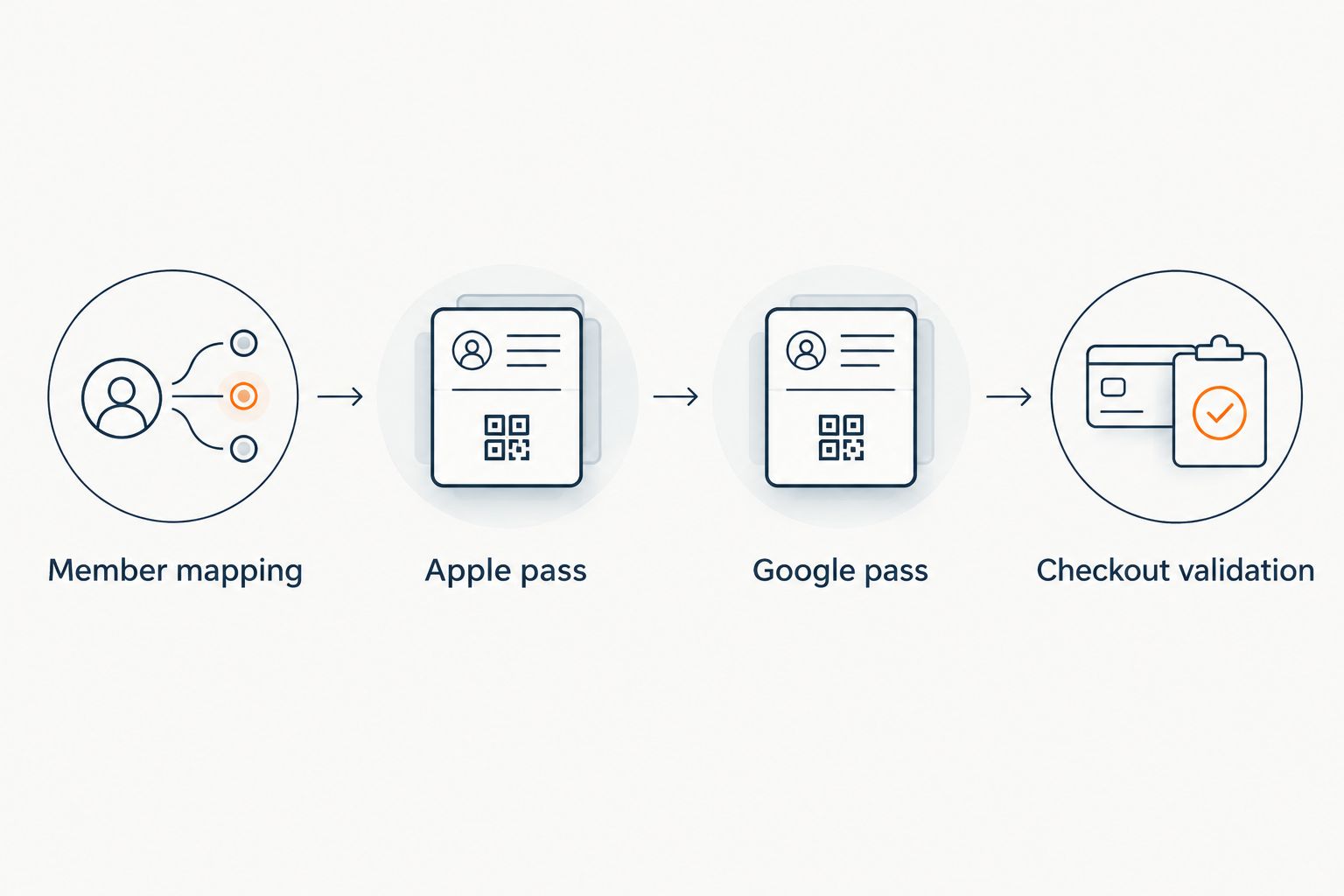
Apple pass
Apple Wallet uses a signed pass package. Your developer or pass provider builds the pass, signs it with the appropriate certificate, and delivers it through a supported save experience.
- Create a loyalty pass using the storeCard pass style. Set passTypeIdentifier, teamIdentifier, serialNumber, organizationName, and description to the correct issuer and pass values.
- Put the grocery membership information in the pass’s display fields. Keep the member identifier readable so staff have a fallback when scanning fails.
- Configure barcodes with the supported format, message, and messageEncoding. Choose the format your checkout tests validate rather than selecting a barcode for appearance.
- Sign and deliver the .pkpass package. Place an approved Add to Apple Wallet button in the authenticated account page, loyalty confirmation, or branded grocery app.
- On an iPhone, open the retailer’s save link, review the pass, and tap Add. Open Wallet and confirm that the membership details belong to the signed-in shopper.
Expected result: Apple Wallet contains a grocery loyalty pass whose barcode retrieves the correct member at your register.
For your 2026 support instructions, explain that the retailer must provide a compatible pass. Shoppers cannot turn an arbitrary plastic grocery card into an issuer-managed Apple Wallet pass simply by photographing it.
Google pass
Google Wallet loyalty issuance uses a loyalty class for shared program information and a loyalty object for the individual member. Keep member-specific data out of the shared class.
- Configure the loyalty class with issuerName and programName. Follow Google’s issuer publishing requirements before offering the pass publicly.
- Create a member-specific loyalty object referencing classId. Set accountId to the intended membership identifier and configure barcode.type and barcode.value for your tested checkout format.
- Generate the authorized save flow using Google’s supported signed token mechanism. Keep signing credentials on the server, not in browser code or a public mobile-app bundle.
- Present the approved Add to Google Wallet button after the customer signs in. Open the save flow on the test device and complete its confirmation prompts.
- Open Google Wallet, select the saved loyalty card, and scan it at the register. Confirm that the POS retrieves the same member as the Apple pass.
Expected result: Google Wallet contains the correct grocery loyalty card, connected through your mapping to the existing member record.
Keep this implementation separate from the wallet’s manual loyalty-card directory. A card a shopper adds independently is not automatically the same object your backend created.
Checkout validation
Treat the register as the acceptance point. A pass that saves successfully but cannot identify a shopper is not ready for a store rollout.
- Test the pass on the actual staffed checkout and self-checkout hardware included in your rollout. Check scanner positioning, phone-screen readability, and the supported barcode format.
- Verify 3 checkout scenarios: member identification, an eligible loyalty benefit, and an ineligible basket. The register must follow existing program rules in each scenario.
- Confirm the receipt or transaction record associates the purchase with the intended member. Do not accept a displayed customer name as the only evidence.
- Test a duplicate save attempt and a replaced membership card. Confirm that repeated saves do not create new loyalty accounts and that obsolete identifiers follow your replacement policy.
- Write cashier fallback instructions: retrieve the member through an approved lookup method, then report the scanning failure without copying personal information into an informal log.
Expected result: Both wallet passes work at the intended checkout lanes, and your staff can recover from a scanning problem without enrolling the shopper again.
For the 2026 pilot, choose a contained store scope and include real checkout conditions. A developer’s successful scan is not a substitute for an associate using the production register.
Update passes when loyalty details change
The adjacent workflow is updating an existing pass instead of asking shoppers to save a new card whenever a displayed field changes. Use it when your pass displays information such as a membership tier or points balance.
For Apple Wallet, configure webServiceURL and authenticationToken when implementing pass updates. Your service handles device registration and updated pass delivery; push notifications tell registered devices to request an updated pass.
For Google Wallet, update the appropriate fields on the existing loyalty object through the Wallet API. Do not create a new object just to refresh the same member’s displayed information.
Use this sequence:
- Receive the authoritative loyalty-system change.
- Resolve the member to the existing wallet identifiers.
- Update only the fields that belong on the pass.
- Verify the saved pass displays the intended change.
Keep the loyalty system authoritative. A displayed balance can lag behind the source system; checkout eligibility must come from your program’s current records.
If updates are outside your initial scope, issue an identification-only pass. A static membership card is more accurate than a changing balance you cannot keep current.
Troubleshooting
The barcode displays, but the register does not read it
Check whether the scanner reads phone screens and supports the selected symbology. Test screen brightness and positioning, then change the barcode format only after confirming that the POS accepts the corresponding value.
The scanner reads the code, but no member appears
Compare the decoded barcode value with the loyalty system’s stored identifier. Leading zeros, whitespace, and a platform pass identifier mistakenly used as a member identifier can break lookup. Correct the mapping before reissuing passes.
Apple Wallet rejects the pass
Validate the pass package, required fields, signature, and signing certificate. Confirm that the pass type and team identifiers match the signing credentials, and deliver the actual pass file rather than a web page presented as one.
Google’s save flow fails or is not ready for public use
Check issuer publishing status, credential permissions, token signing, and the class-to-object relationship. Test with the accounts permitted by your current issuer setup before distributing the save button to customers.
Rewards information looks different in Wallet and at checkout
Check the authoritative loyalty record first, then inspect pass-update delivery. Fix the update process rather than changing the transaction to match a stale pass. Tell support staff that Wallet display information does not override program rules.
Customize your workflow
After identification works, place wallet-save entry points where shoppers already manage membership: your authenticated website account, branded mobile app, and enrollment confirmation. Use a clear explanation of what the pass does and how to present it at checkout.
Localexpress’s grocery ecommerce and branded mobile app offering provides relevant customer-facing channels. Confirm whether wallet issuance is included, supplied through a partner, or requires development; do not assume it from the presence of a loyalty screen.
For 2026 back-to-school shopping and holiday meal planning, keep seasonal messages separate from the durable membership identifier. Promotional content changes; the account relationship should remain stable.
Measure the workflow in stages: save-button use, successful pass issuance, and member-linked checkout transactions. A save-button click is not proof that a card was saved or scanned. Define what each system can actually observe before reporting adoption.
Plan your grocery customer experience
Discuss branded grocery ecommerce and mobile apps, then confirm loyalty and wallet integration requirements.
FAQ
How do I add my grocery loyalty card to Apple Wallet?
Open the grocery retailer’s supported pass link or app, tap Add to Apple Wallet, and tap Add on the pass preview. If the retailer does not provide a compatible pass, Apple Wallet does not offer a universal loyalty-card scanning option.
How do I add my grocery loyalty card to Google Wallet?
Use the retailer’s Add to Google Wallet button, or open Google Wallet and choose Add to Wallet, then Loyalty, to search for a supported program. Follow the prompts to scan or enter the membership details; options depend on the program.
Is an Apple Wallet Google Wallet loyalty card also a payment card?
No, a grocery loyalty pass identifies membership rather than paying for groceries. Payment requires a separate supported payment method, and barcode scanning does not establish contactless loyalty support.
Can an independent grocery store issue wallet loyalty cards?
Yes, an independent grocer can issue passes through the appropriate Apple and Google issuer systems or a provider that implements them. The store still needs reliable member mapping and POS barcode support.
Does Localexpress include Apple Wallet and Google Wallet loyalty integration?
Confirm wallet integration scope directly with Localexpress before planning implementation. Its stated offering includes branded grocery ecommerce and mobile apps, but those capabilities alone do not establish wallet issuance or pass-update support.
Will both wallet cards use the same grocery loyalty account?
Both wallet cards should resolve to the same existing loyalty account when the retailer maps them correctly. Apple and Google use different pass identifiers, so the backend must preserve the shared membership relationship.
Can grocery loyalty points update automatically in Wallet?
Issuer-managed passes can display updated loyalty information when the retailer implements the relevant update services. Apple and Google use different update mechanisms, and the loyalty system remains authoritative for checkout decisions.
Should cashiers scan the loyalty pass or ask customers to tap?
Use barcode scanning unless the retailer has separately implemented and validated a supported contactless loyalty integration. A payment terminal’s tap-to-pay capability does not mean it can retrieve a grocery loyalty account from a wallet pass.
One last thing
Start with identification, not a live points display. An identification-only pass avoids publishing a balance your first release cannot reliably refresh. Prove that the correct member receives the correct benefit at checkout before adding changing information to the card.