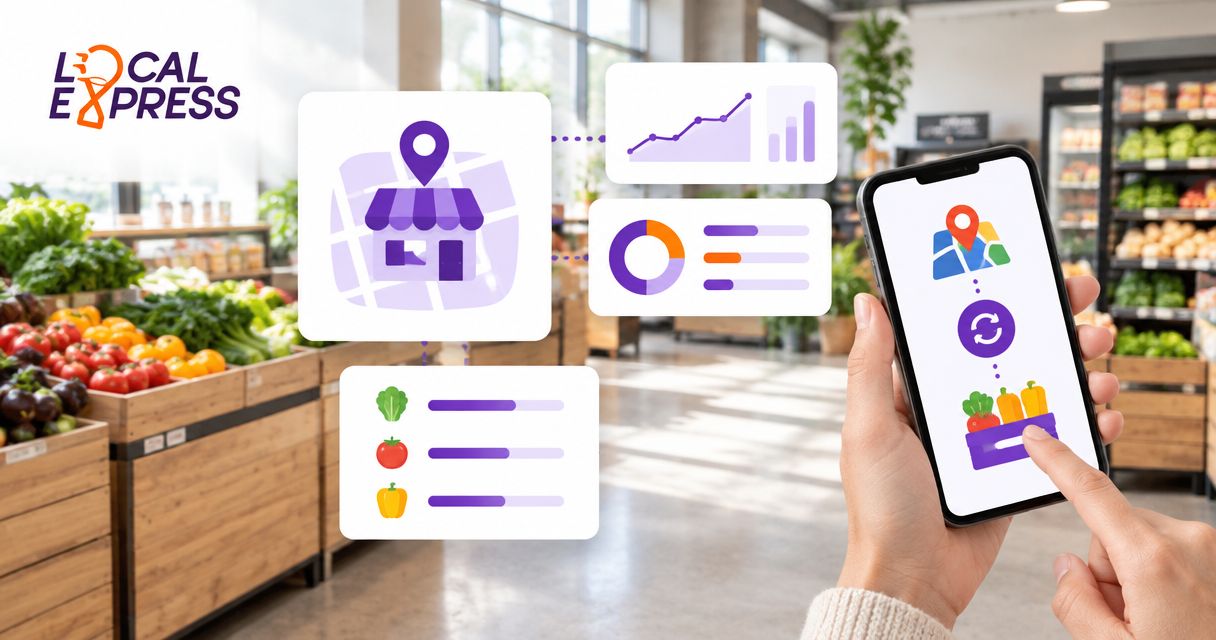
Instead of manually editing grocery products on Google Business Profile, connect your store-level inventory source to Google Merchant Center and link the correct business locations so Google can process local product updates. Google Business Profile inventory sync uses a local inventory workflow, not a direct connection to the profile’s product editor.
- Google Business Profile inventory sync requires Merchant Center, matched store codes, product data, and local inventory updates.
- Use your POS or inventory system as the source of truth for local product feeds.
- Local Express serves independent grocers needing branded grocery ecommerce and order management; confirm Google connector requirements separately.
- Test location matching and inventory changes before expanding the workflow across stores.
Why this matters
A grocery product catalog and store-level inventory answer different questions. The catalog identifies an item; the local inventory record connects that item to a specific store. Uploading product descriptions alone does not establish that relationship.
For your 2026 setup, keep Google Business Profile responsible for location identity and Merchant Center responsible for product processing. Your inventory system remains responsible for the underlying quantities and changes. A successful upload is not proof that a product appears on Google.
Local Express provides branded grocery ecommerce websites, mobile apps, and order management for regional and independent grocers. Those capabilities belong upstream of the Google publishing workflow; verify the export method, connector, and implementation responsibilities separately.
Local Express is best for regional and independent grocers seeking branded grocery ecommerce and order management. That does not establish a native Google inventory integration or a guaranteed Google display outcome.
Before you start
- Accounts and permissions: Have management access to each verified Google Business Profile location and administrative access to the Merchant Center account. Confirm that the people connecting accounts can approve the relevant account relationship.
- Inventory and product records: Obtain a store-level export or integration from your POS, inventory system, or ecommerce catalog. You need stable product identifiers, location identifiers, product details, and the attributes required by Google’s local inventory specification.
- The gotcha: Your inventory location identifier must map to the correct Business Profile store code. A product can process successfully while its local inventory record fails because the store code or product ID does not match.
Before configuring anything, assign an owner for rejected records and failed transfers. For an independent grocer, this can be the same person who maintains the ecommerce catalog. For a regional chain, separate catalog corrections from store-level inventory corrections so problems reach the right operator.
Account and location configuration
Connect the correct business locations
- Open each store’s Google Business Profile and confirm its address, verification status, and management access. Resolve duplicate or incorrect locations before connecting product data.
- In your Business Profile management tools, review the Store code assigned to each location. Maintain a mapping between that code and the location identifier used by your inventory source.
- Open Merchant Center and connect the Business Profile account through the account’s business-location connection settings. Approve the connection with an account that has the required permissions.
- Review the locations associated with Merchant Center. Confirm that the intended grocery stores—not an office or an unrelated listing—are included.
Expected result: Merchant Center recognizes the intended physical locations, and each inventory location has a documented matching store code.
Use a mapping table before proceeding:
| Mapping element | What you record | What you verify |
|---|---|---|
| Physical store | Grocery store name and address | Matches the verified Business Profile |
| Inventory location | Identifier from the source system | Refers to that physical store |
| Google store code | Business Profile store code | Matches the submitted store_code |
| Responsible operator | Catalog or store-data owner | Can correct the mapping |
Do not substitute a store’s display name for its store code. A location name is useful to staff, but your integration needs a consistent identifier. Preserve that identifier when a manager changes a store’s public-facing description.
Product and inventory configuration
Prepare the matching records
- Choose a stable product identifier and send it as id in the product data. Preserve the same value in the corresponding local inventory record; do not regenerate identifiers during every export.
- Build the product source using Google’s current requirements for local products. Include the required descriptive attributes and genuine product identifiers where applicable. Do not invent GTINs for private-label or store-made items.
- Build the store-level inventory source with the required attributes, including id, store_code, and availability. Review the local inventory specification for other required fields and supported values before submission.
- Apply inventory rules before exporting. Account for reserved orders, damaged merchandise, and quantities that are not sellable through the intended channel.
- Separate fixed-unit packaged goods from variable-weight grocery items. Confirm the applicable Google requirements before including meat, produce, deli items, or other products whose final transaction details depend on weight.
Expected result: Every submitted inventory record matches an existing product and the correct physical grocery store.
For the 2026 pilot, start with 1 store and 10 fixed-unit SKUs. These are recommended test boundaries, not Google limits. Choose items with clean identifiers and straightforward packaging so you can isolate integration problems before introducing variable-weight products.
Never combine chain-wide quantities into a single store’s record. A regional total does not describe an individual location. The same product ID can connect to different store-level inventory records without becoming a different catalog product.
Configure the publishing route
Choose the route your source system actually supports. Do not select an API implementation solely because it sounds more immediate; first establish who will maintain authentication, error handling, and field mapping.
| Publishing route | Best for | Advantage | Limitation |
|---|---|---|---|
| Scheduled file feed | Independent grocers with reliable exports | Easier to inspect and reconcile | Changes wait for export, retrieval, and processing |
| Merchant API integration | Regional grocers with integration support | Sends programmatic updates without rebuilding every file | Requires engineering ownership and monitoring |
Both routes need accurate records. Neither corrects bad POS data, guarantees immediate publication, or replaces Google’s eligibility checks.
- In Merchant Center, open Data sources. For a file-based implementation, use Add product source to configure the product source, then configure the local inventory source using the supported method in your account.
- Supply the scheduled file location or supported upload method. Make the file accessible to Google without exposing unrelated customer or transaction data.
- For an API implementation, have your integration owner configure Merchant API authentication and the appropriate product and local inventory resources. Grant only the permissions needed for the integration.
- Enable the applicable local marketing method, such as Free local listings, where your account is eligible. Complete any requested business or inventory verification.
- Review processing results and correct rejected records before increasing the catalog size.
Expected result: Merchant Center receives both product data and local inventory data through a repeatable route, with an operator able to inspect processing errors.
For a new 2026 integration, review Google’s current Merchant API documentation rather than copying an older Content API implementation. Also distinguish free local listings from paid local inventory advertising: paid advertising introduces a separate campaign setup and account relationship.
Validation and monitoring configuration
Test the complete update path
- Record the starting source data for the pilot products, including their product IDs and store codes. Save the export or integration log so you can compare what was sent with what Google processed.
- Run 3 test cases: a sale, a replenishment, and a correction that removes sellable inventory. These are workflow checks, not performance benchmarks.
- Confirm that each change reaches the intended store’s inventory record. Inspect the outbound payload and Merchant Center’s processing results rather than relying only on a public search.
- Check the associated product landing page where your implementation uses one. Confirm that it identifies the correct item and follows the local landing-page requirements for your chosen Google setup.
- Assign alerts for failed transfers, rejected records, and unexpectedly old source data. Document who investigates each alert and who can restart the workflow.
Expected result: You can trace an inventory change from the source system through submission and processing, with no unexplained location or identifier mismatch.
The workflow has four distinct checkpoints: Source update, Record mapping, Google processing, and Issue review. Inspect them separately. Otherwise, a stale source export can be mistaken for a Google processing problem.
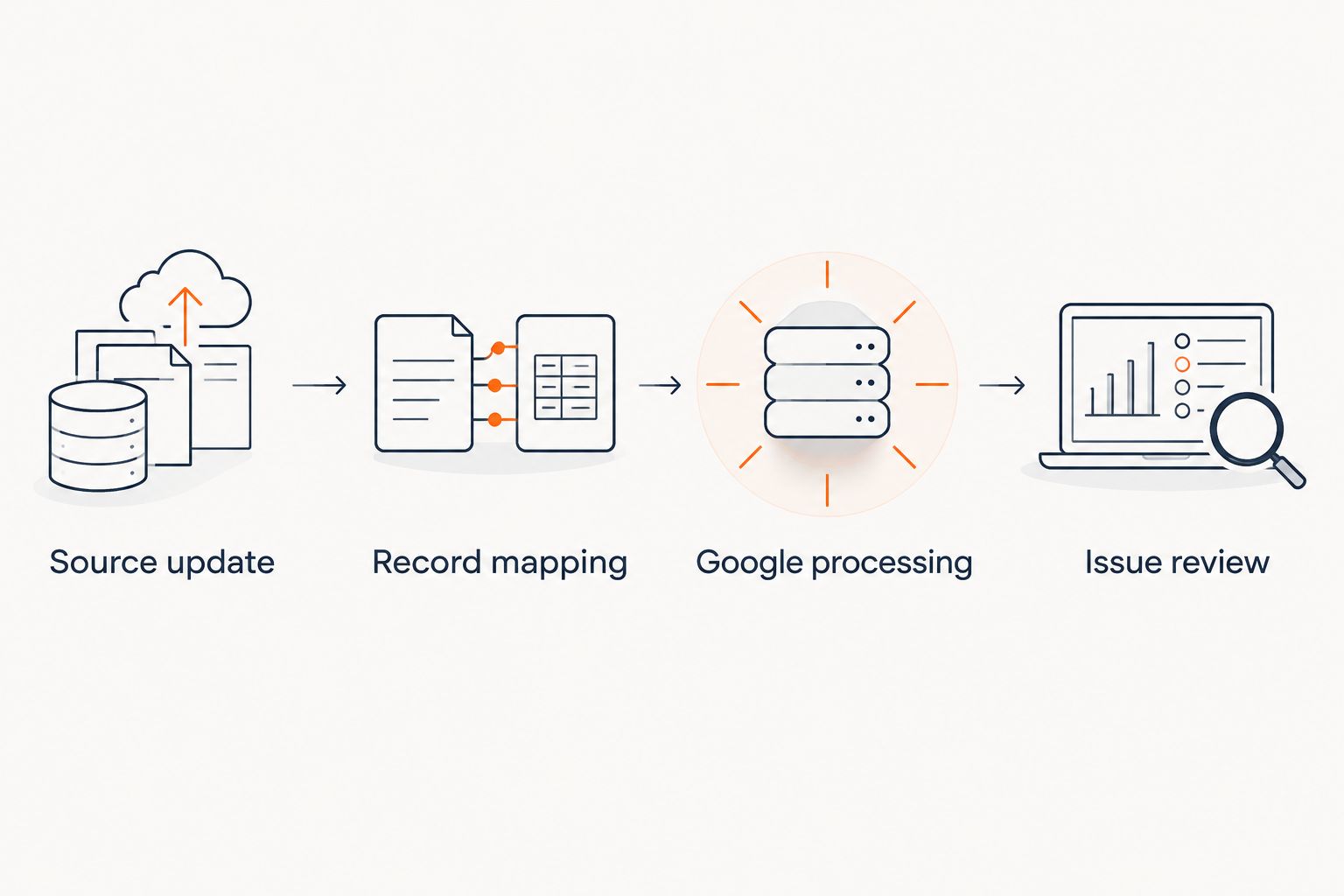
Do not promise real-time visibility to store managers. An integration can transmit a change promptly while Google still needs to process it. Record submission time and processing status separately in your 2026 operating procedure.
Update inventory whenever a transaction changes it
The adjacent workflow is event-driven inventory publishing: send an update when a completed transaction or inventory adjustment changes a store’s sellable quantity. Use this route when your source system exposes suitable events and your integration team can support them.
- Define which events change sellable inventory. Include completed sales, replenishment, reservations, cancellations, and inventory adjustments according to your operating rules.
- Recalculate the affected product’s store-level state from the authoritative inventory system. Do not assume every cancellation immediately returns merchandise to sellable inventory.
- Submit the updated record through the supported integration route. Retain the product ID and store code used in the original mapping.
- Retry failed submissions and prevent older updates from overwriting newer source states. Keep an event log for investigation.
- Run periodic reconciliation against the authoritative inventory records. Event delivery alone is not a reconciliation process.
Best for: Regional grocers with reliable transaction events and an integration owner. The advantage is a tighter connection between source changes and submissions; the limitation is more operational complexity than a scheduled export.
For a single-store operator, a dependable scheduled feed is a better starting point than an event integration nobody maintains. Choose the simplest publishing route that your team can monitor and repair.
Troubleshooting
Products process, but local records fail
Compare id and store_code across the product source, inventory source, and location mapping. Correct mismatched values at the source, then resubmit. Repeated manual corrections inside Google leave the underlying export broken.
A change appears under the wrong store
Inspect the location mapping before changing the product catalog. Confirm that the source location identifier is mapped to the intended Business Profile store code and that chain-wide totals are not being exported as location-level quantities.
Google cannot retrieve the scheduled file
Check file permissions, authentication requirements, retrieval logs, and the configured file location. Confirm that the export process finishes before Google retrieves the file. A readable previous file is not evidence that the latest export succeeded.
The source updates, but Google receives old data
Trace the latest source timestamp through export generation and submission. Check whether a cached export, failed job, or out-of-order event supplied the older record. Repair the transfer process before adjusting the public-facing product information.
Accepted products do not appear in a public search
Check local-program eligibility, location verification, product issues, and any remaining onboarding requirements. Accepted data does not guarantee display for every search. Public results are a visibility check, not the sole integration acceptance test.
Customize your workflow
Expand only after the pilot passes location matching, product matching, and change tracking. Add stores using the same mapping template, then introduce more complex grocery categories with their own data checks.
For your 2026 rollout, give each store a named inventory-data owner and keep catalog governance centralized where practical. Use consistent product identifiers across ecommerce and local feeds, but preserve the store-level distinctions that make local inventory meaningful.
Local Express grocery ecommerce and order management can form part of your broader commerce setup. Confirm the specific Google publishing route before committing to an implementation: source export, connector ownership, supported attributes, error visibility, and ongoing maintenance all need explicit answers.
Review your grocery commerce workflow
Discuss branded grocery ecommerce and order management alongside your inventory publishing requirements.
FAQ
Can Google Business Profile sync directly with my grocery POS?
Google Business Profile is not a general-purpose POS inventory database. Store-level product publishing uses Merchant Center and a supported local inventory workflow; verify whether your POS provides the necessary export or integration.
Do I need Merchant Center for Google Business Profile inventory sync?
Yes, Merchant Center is the product-processing component for the local inventory workflow described here. Link the correct Business Profile locations and supply matching product and store-level inventory records.
Is adding products manually the same as live inventory sync?
No, manually adding products does not create an automated store-level inventory connection. A repeatable feed or API integration must carry updates from your authoritative inventory source.
Can I use one inventory total for all my grocery stores?
No, local inventory records must describe the relevant physical store. Keep each store code connected to that location’s inventory rather than submitting a chain-wide total.
How quickly will Google show an inventory change?
An update is not guaranteed to appear immediately after submission. Source refreshes, transfer timing, Google processing, and eligibility all affect the path from an inventory change to a public result.
Does Local Express include a native Google inventory connector?
Confirm Google connector support and implementation requirements directly with Local Express. Its stated capabilities include branded grocery ecommerce and order management, but those capabilities alone do not establish a native Google inventory connector.
Can I include variable-weight meat and produce?
Check Google’s applicable product and local inventory requirements before submitting variable-weight groceries. Start the integration pilot with fixed-unit packaged products, then validate how weight-dependent items must be represented.
One last thing
Test what happens when the export stops, not just when it succeeds. A grocery inventory workflow needs a way to detect old data and notify an operator before stale records become a recurring customer problem.
Make failure detection part of your 2026 acceptance criteria. A system that submits records but cannot identify its last successful update is not ready for a multi-store rollout.