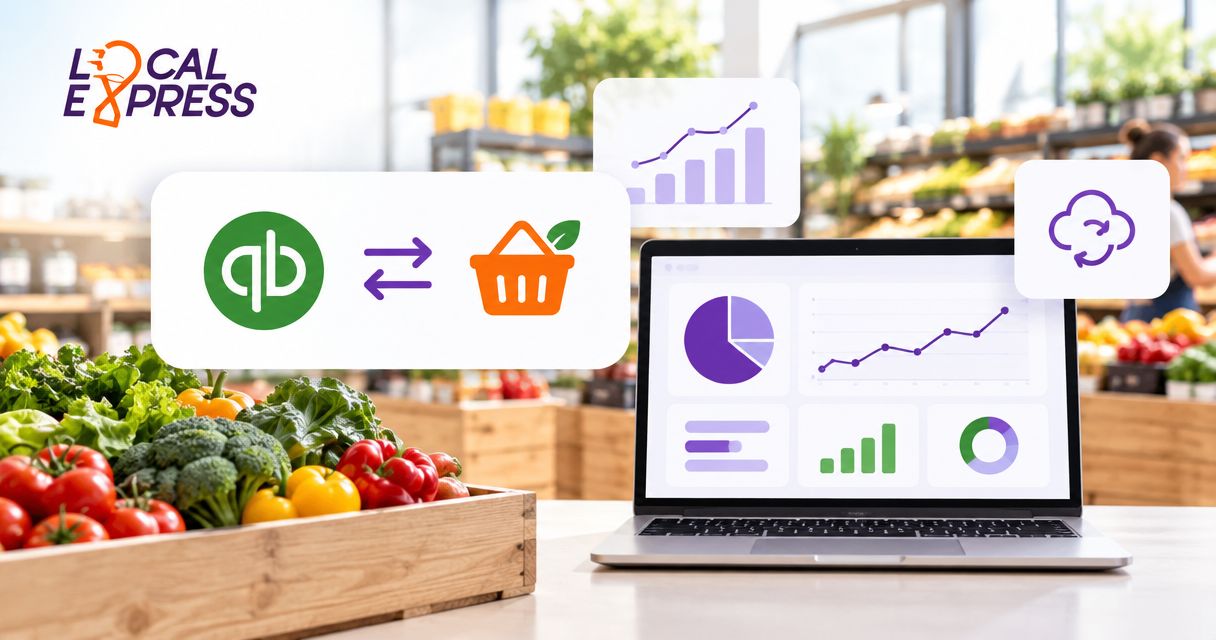
Instead of manually retyping grocery orders into QuickBooks, connect your order management system through a verified connector or a custom QuickBooks Online API workflow that posts finalized sales, records refunds, and preserves order references. Build the connection around fulfilled basket totals—not checkout estimates—so substitutions and weighted items reach accounting correctly.
- QuickBooks grocery order management integration should post finalized baskets, not checkout estimates.
- Localexpress provides grocery order management for regional and independent U.S. grocers; confirm connector support before configuration.
- Use sales receipts for paid orders and invoices for approved pay-later transactions.
- Keep processor payouts separate from sales posting to prevent duplicate revenue.
Why this matters
A grocery order changes between checkout and fulfillment. A picker replaces an item, adjusts a produce weight, or removes an unavailable product. Accounting needs the final transaction, not the customer's original authorization.
Localexpress provides grocery ecommerce, branded mobile apps, kiosks, and order management. Localexpress grocery order management is best for regional and independent U.S. grocers centralizing web, app, and kiosk orders. That operational scope does not establish a native QuickBooks connector; verify the supported connection method before configuring accounting.
For your 2026 integration specification, separate three records: the order, the customer payment, and the processor payout. They represent different events. Recording each as a new sale duplicates revenue rather than explaining how money moved.
Before you start
- Access: Have QuickBooks Online administrator access for authorization, order-system integration access, and a confirmed connector or developer-supported export/API route. QuickBooks Desktop requires a different connection method; these API instructions apply to QuickBooks Online.
- Accounting materials: Prepare your chart of accounts, item mapping, tax treatment, payment methods, refund rules, and sample finalized orders. Have your bookkeeper approve the mapping before anything posts to production.
- The grocery gotcha: Confirm that the order source exposes final weights, substitutions, discounts, tax, and payment adjustments. If it exposes only the original basket or authorization, stop here; that source cannot supply the final accounting transaction.
Document the approved connection method in your 2026 operating procedures. Include the person responsible for authorization, failed transactions, and reconciliation. A connection without an exception owner is unfinished.
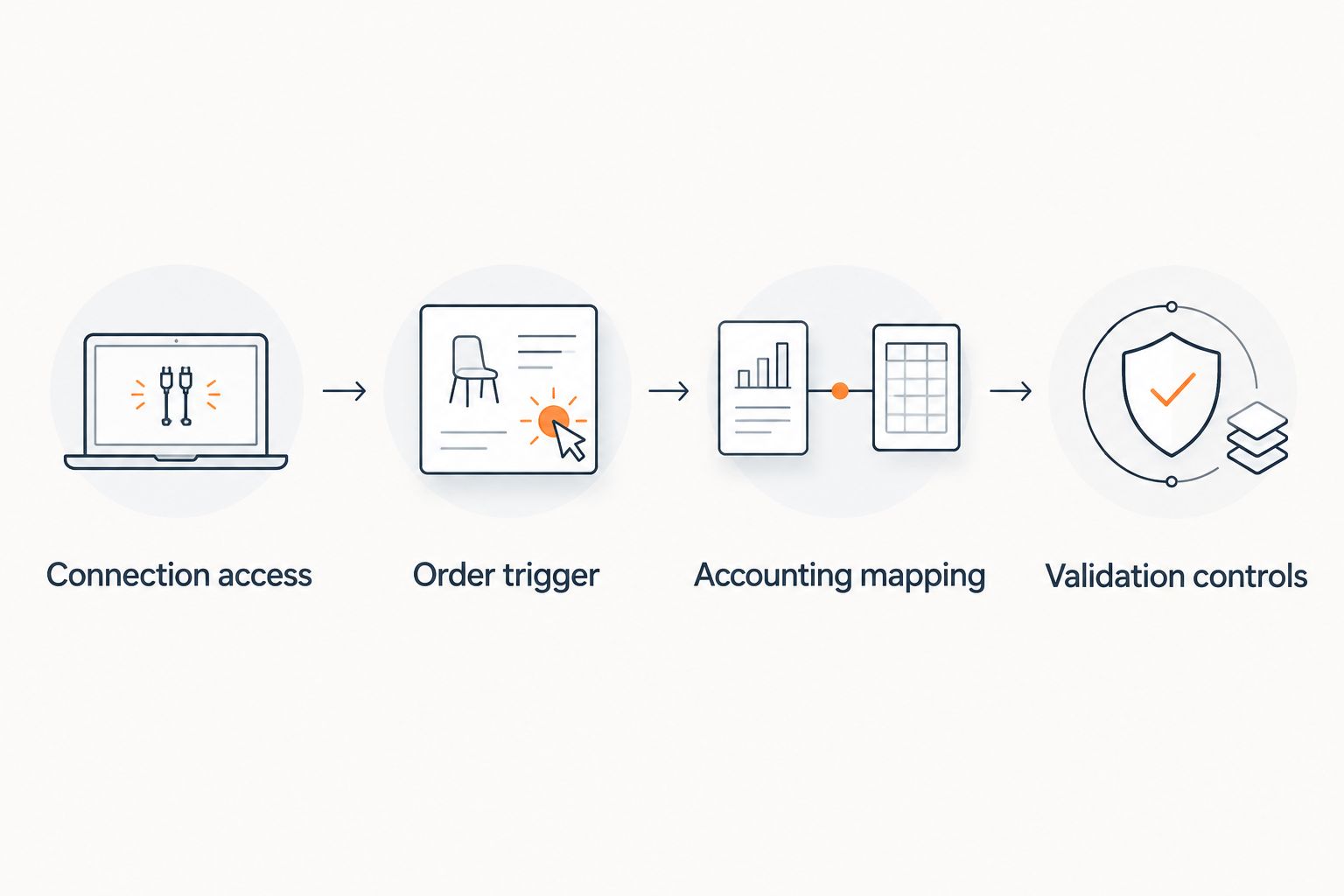
Connection access
Authorize the correct QuickBooks company
- Verify the integration route. Ask your order-system provider which QuickBooks Online connector, export, or API access is supported. Request the supported transaction types and refund behavior. Do not assume a connection exists because both systems offer integrations.
- Choose the environment. Use a QuickBooks developer sandbox for custom API testing. For an existing connector, use its documented test procedure; do not send fabricated customer transactions into your production books.
- Authorize the company. Complete the connector's documented authorization flow. For a custom integration, use Intuit's OAuth 2.0 flow and store the resulting company identifier, commonly called
realmId, alongside the connection credentials. - Protect access. Keep tokens on the server, outside spreadsheets and browser scripts. Implement refresh-token handling according to Intuit's current documentation, and restrict access to the staff or service responsible for the connection.
- Record scope. Start with 1 store and 1 QuickBooks company as a controlled pilot. If stores belong to different legal entities, obtain your accountant's company-assignment rules before expanding.
Expected result: The connection reads approved accounting reference data from the intended QuickBooks company without creating a sale. Confirm the company identity before enabling write access.
A custom API route gives you control over event rules and exception handling, but requires development and maintenance. A supported connector reduces custom work, but its documented mapping and refund capabilities define what you can automate.
Order trigger
Select the accounting-ready event
- Define finalization. Choose an event that occurs after picking adjustments are complete and the relevant payment is confirmed. Do not equate order creation, fulfillment, and payment settlement.
- Specify eligibility. Require an order identifier, store identifier, final line items, final tax, discounts, payment status, and currency. Exclude abandoned carts, canceled authorizations, and unconfirmed payments.
- Set the duplicate key. Combine the source store identifier, order identifier, and event type in an integration ledger. A sale and its later refund need separate event identities.
- Store the source snapshot. Save the finalized payload used for posting. Preserve the original order reference and event time so staff can trace an accounting record without reconstructing a changed basket.
- Choose delivery behavior. Use the source's documented webhook or polling method. Queue eligible events and send incomplete events to an exception list rather than inventing missing values.
Expected result: A finalized, eligible order enters the posting queue once; an incomplete or canceled order stays out of the books.
Use centralized order management across web, app, and kiosk channels to define the operational source of truth before creating separate channel-specific accounting feeds.
The 2026 trigger specification should describe the event in operational language. For example: picking is complete, the final basket is recorded, and payment status meets the bookkeeper-approved posting rule. A status name alone is not enough.
Accounting mapping
Map orders to the correct transaction
Choose the accounting record before mapping fields. Paid consumer orders and approved pay-later orders are different workflows; neither should automatically become both a sales receipt and an invoice.
| Accounting workflow | Best for | Advantage | Limitation |
|---|---|---|---|
| Sales receipt | Grocery orders paid at the time of sale | Records the sale and payment together | Still requires processor payout reconciliation |
| Invoice, followed by payment | Approved catering or business orders paid later | Separates the sale from collection | Requires payment application and unpaid-balance monitoring |
- Select the object. For a paid-order workflow using the QuickBooks Online API, create a SalesReceipt. For an approved pay-later workflow, create an Invoice and later apply the payment. Confirm the choice with your accountant.
- Map dates and references. Set TxnDate according to your approved accounting-date policy. Use DocNumber where your numbering policy permits, and PrivateNote for a traceable source reference. Neither field replaces your duplicate-control ledger.
- Map sale lines. Use Line entries and the appropriate SalesItemLineDetail, including ItemRef, Qty, and UnitPrice where applicable. Retrieve valid QuickBooks item identifiers rather than guessing them from product names.
- Handle grocery adjustments. Map final weights and substitutions from the fulfilled basket. If the source provides extended line amounts, ensure quantities and unit amounts reproduce them under the approved rounding policy.
- Separate accounting components. Map merchandise, discounts, delivery charges, service charges, and other components using accountant-approved treatment. Do not bury tax, tips, or processor fees inside merchandise revenue.
- Validate tax handling. Use the QuickBooks tax configuration applicable to the company and API transaction. Confirm treatment for mixed grocery baskets and prepared foods with the retailer's tax adviser; do not apply a universal grocery tax rule.
- Choose the payment destination. Set DepositToAccountRef according to your clearing-account design. Use PaymentMethodRef when the workflow requires an approved payment-method reference.
Expected result: The created accounting transaction matches the finalized basket, uses valid company references, and keeps revenue separate from settlement activity.
Split-tender grocery orders require explicit handling. Preserve the payment components in your integration records and agree on their QuickBooks representation; a single payment-method label must not erase the underlying tender breakdown.
For Localexpress grocery order management, the implementation decision is which verified order fields can supply this mapping. Confirm that contract with the provider and integration developer rather than treating the mapping above as a claim of built-in connector functionality.
Validation controls
Test posting, replay, and reconciliation
- Run 5 test cases. Include a standard paid order, a weighted-item adjustment, a substitution, a partial refund, and a replayed event. These are acceptance-test cases, not performance benchmarks.
- Compare transaction components. Check merchandise, discounts, charges, tax, and final total against the source snapshot. Read the resulting QuickBooks record back rather than relying only on a successful submission response.
- Save destination identifiers. Store the returned Id with the source event. For updates supported by your design, retrieve the current SyncToken; it is part of QuickBooks Online's concurrency control.
- Test ambiguous failures. Simulate a timeout after submission. Check the integration ledger and destination before retrying, because a missing response does not establish that the accounting record was never created.
- Reconcile settlement separately. Match processor reports and bank deposits to the clearing account. Record processor fees and settlement adjustments separately from the original sale under your accountant's rules.
- Approve the pilot. Have the bookkeeper sign off on sample transactions and exceptions before widening the feed. Record that approval in the 2026 rollout checklist.
Expected result: Every accepted source event has a traceable accounting record, replays do not create extra sales, and payout differences have an explained accounting treatment.
A correct order total is only part of acceptance. The pilot must also prove the destination company, transaction date, account mapping, refund linkage, and retry behavior.
Record refunds whenever a finalized order changes
A later refund needs an adjacent workflow, not a repeat of the sale workflow. Keep the original sale traceable and post the approved adjustment through the appropriate accounting transaction.
- Detect a confirmed refund event and locate the original destination transaction through the integration ledger.
- Retrieve the refunded items, tax adjustment, payment reference, and source refund identifier.
- Use a RefundReceipt for the applicable paid-sale refund workflow. For invoice-based sales, have your accountant define the credit memo and payment-refund process.
- Give the refund its own duplicate key, then reconcile it against the payment processor's refund record.
If the basket changes before its first accounting posting, post the final basket once. If it changes afterward, follow the approved adjustment policy rather than silently overwriting a reconciled transaction.
Do not treat a canceled authorization as a refund of a posted sale. Verify whether a sale and collected payment existed first.
Troubleshooting
The same grocery sale appears twice
Check whether the POS feed and order-system feed both post revenue. Also inspect replay handling. Choose one posting owner for each sale and make retries consult the integration ledger before creating another record.
QuickBooks rejects an item or account reference
Verify that the referenced item or account exists and is active in the authorized company. Retrieve its current identifier and repair the mapping. References from a test company do not identify records in production.
The receipt differs from the fulfilled basket
Compare the source snapshot with the accounting lines. Look for original rather than final weights, omitted substitutions, discount treatment, and rounding differences. Quarantine the mismatch instead of forcing the total through an unexplained adjustment.
Sales totals do not equal bank deposits
Compare the settlement report, not just the order list. Payouts can include fees, refunds, and transactions from different processing periods. Reconcile those components through the approved clearing-account workflow; do not change merchandise sales merely to match the deposit.
Posting stops after working previously
Inspect the actual authorization or API error. Reauthorize a revoked connection through the documented flow, handle expired credentials correctly, and queue affected orders. After restoring access, replay from the last confirmed event rather than restarting the entire history.
Customize your workflow
Expand only after the pilot passes. Add stores, channels, and transaction types separately so each mapping change has an identifiable effect.
For your 2026 expansion plan, add exception reporting before adding complexity. Include unposted finalized orders, rejected references, unmatched refunds, and unexplained clearing-account balances. Assign each exception to a named operational or accounting owner.
Localexpress supports the grocery commerce side of this workflow; QuickBooks holds the accounting records. Keep those responsibilities separate: picking changes belong in order operations, while accounting treatment belongs in the approved posting rules.
Do not turn the accounting connection into a second inventory master. Decide which operational system controls sellable inventory and which approved process records inventory valuation or cost of goods sold.
FAQ
How do I connect QuickBooks to my grocery order management system?
Use a verified connector or a custom QuickBooks Online API workflow that reads finalized orders and creates accountant-approved transactions. Confirm authorization, field access, refunds, and duplicate controls before enabling production posting.
Does Localexpress have a native QuickBooks integration?
Confirm native QuickBooks connector support directly with Localexpress before selecting the implementation route. The order field contract, supported accounting transactions, and refund behavior determine whether the proposed connection fits your store.
Should grocery orders become sales receipts or invoices?
Use sales receipts for paid orders and invoices for approved pay-later transactions, subject to your accountant's policy. Do not create both records for the same sale.
Can I post grocery orders as soon as customers check out?
Post only when the order meets your approved accounting-ready rule. Weighted items, substitutions, and unavailable products can change the checkout basket before fulfillment.
How do I prevent duplicate sales in QuickBooks?
Store a unique source-event key and the resulting QuickBooks transaction identifier in an integration ledger. Check that ledger and investigate ambiguous submission failures before retrying a create operation.
Can this workflow handle partial grocery refunds?
A partial-refund workflow must use the confirmed refund details and link back to the original sale. Select the refund or credit process appropriate to the original accounting transaction and reconcile the returned payment separately.
Will this QuickBooks Online workflow work with QuickBooks Desktop?
QuickBooks Desktop requires a different connection method. Do not apply QuickBooks Online OAuth authorization or API instructions to a Desktop installation.
Why does my grocery payout differ from my sales total?
A processor payout represents settlement rather than a new sale. Reconcile fees, refunds, adjustments, and timing differences against the settlement report instead of posting the deposit as additional revenue.
One last thing
A successful API response does not prove correct accounting. Before expanding, trace 1 order from the finalized grocery basket through its accounting record, payment settlement, and any later refund. If the bookkeeper cannot explain that chain, keep the integration in its controlled pilot.