Instead of manually matching website traffic to grocery orders, connect Google Analytics 4 through a Google tag and validated ecommerce events so you can measure the path from product selection to purchase. This 2026 guide covers a GA4 grocery ecommerce tracking setup for U.S. regional and independent grocers, including checkout testing and order adjustments.
- A GA4 grocery ecommerce tracking setup needs ecommerce events, not just a Google tag.
- Localexpress grocery ecommerce serves regional and independent grocers that need branded online ordering.
- Use Google Tag Manager when your team needs control over event mapping and checkout validation.
- Send purchase only after order confirmation, with a stable transaction_id to prevent duplicate reporting.
Why this matters
A pageview tells you someone opened your storefront. It does not tell you whether that shopper added groceries, selected curbside pickup, or completed checkout. GA4 needs those actions sent as events with the correct parameters.
Localexpress grocery ecommerce is best for regional and independent grocers that need branded online ordering. Localexpress provides branded grocery websites, mobile apps, order management, and delivery tools. Those commerce capabilities do not establish that a particular storefront already has a working GA4 integration; verify the tracking implementation separately.
For your 2026 measurement plan, distinguish accepted orders from fulfilled orders. Weighted produce, substitutions, and refunds can change the final transaction after checkout. Analytics supports funnel analysis; your order system remains the source of truth for fulfillment and financial reconciliation.
Before you start
- Accounts and permissions: Have Editor access to the GA4 property, permission to publish the Google Tag Manager container, and access to whoever controls your storefront and checkout code. Create a property if your business does not already have one.
- Implementation materials: Collect your storefront and checkout domains, existing tag inventory, consent requirements, and an event specification. For a Localexpress storefront, confirm the supported tag-placement and ecommerce-event options with the implementation team rather than assuming an admin setting exists.
- The checkout gotcha: Confirm that tracking can run on the actual checkout and confirmation screens. A separate checkout domain, embedded payment flow, or missing order data can break purchase measurement even when storefront pageviews work.
Do not publish a second tracking implementation until you know what already sends events. Check for a platform-installed Google tag, a Tag Manager container, and existing purchase tracking. Duplicate senders create misleading results that a dashboard cannot repair.
Choose your tracking method
Use the following decision table before changing production tracking. These are implementation choices, not claims about a particular storefront's supported integrations.
| Method | Best for | Advantage | Limitation |
|---|---|---|---|
| Supported platform integration | Grocers whose storefront provides a documented GA4 connection | Keeps configuration close to the commerce system | Requires verification of event coverage and checkout behavior |
| Google Tag Manager | Grocers with developer support and a usable ecommerce data layer | Gives your team control over triggers and event parameters | Requires testing, consent configuration, and duplicate-tag prevention |
| Direct Google tag implementation | Grocers whose developers maintain tracking in storefront code | Keeps event logic under code review | Changes require development and deployment work |
Use Google Tag Manager for the steps below only if your storefront supports its installation. If a supported platform integration already sends complete ecommerce events, validate that connection instead of layering another purchase sender over it.
GA4 property and web stream
- Open Google Analytics and select the property that should receive your grocery website data. If needed, open Admin, select Create, then Property. Enter the property name and choose the reporting time zone and currency used for your U.S. operation.
- In Admin, open Data streams. Select the existing website stream, or choose Add stream, then Web. Enter the storefront URL and stream name, then select Create stream.
- Copy the Measurement ID from the web stream details. It begins with
G-. Record which property and stream own it so your developer does not connect checkout to a different property. - Review Enhanced measurement in the stream. It collects supported website interactions, but it does not replace grocery ecommerce events such as
add_to_cartandpurchase. - Document the reporting convention in your 2026 launch record: website scope, time zone, currency, and whether a purchase represents an accepted order or a later business milestone.
Expected result: You have a web stream, its measurement ID, and an agreed definition of an online purchase. Creating the stream alone does not collect data; the website still needs a working tag.
Keep ownership with your business. Give the implementation team the required permissions without sharing a single employee's login, and retain a record of who can publish tracking changes.
Google tag and consent configuration
- Open the correct website container in Google Tag Manager. If the container is not installed, have your developer install the supplied container snippets using the storefront's supported method.
- Select Tags, then New. Open Tag Configuration, choose Google tag, and enter the web stream's measurement ID in Tag ID.
- Open Triggering and select Initialization - All Pages. This establishes the base tag early in the page lifecycle; it does not authorize tracking before the shopper's consent choices are applied.
- Have the consent implementation set the appropriate default consent state before measurement tags run and update it when the shopper makes a choice. Review the container's consent behavior against your privacy requirements.
- Select Preview and connect Tag Assistant to your storefront. Visit a product page and inspect whether the Google tag fires as intended. Open GA4 Realtime to check incoming activity.
Expected result: The intended property receives website activity, and the tag follows your consent configuration. GA4 Realtime includes a view covering the last 30 minutes; use it as an immediate collection check, not as proof that ecommerce reporting is complete.
If checkout uses another domain, open the web stream's Configure tag settings, then Configure your domains. Add the relevant domains only when they participate in the same customer journey and use the appropriate shared tagging configuration.
A payment processor's domain is not automatically part of your cross-domain setup. Verify whether you control tagging there, and inspect referral attribution separately. Do not add domains simply because they appear during payment.
Ecommerce data layer and event mapping
Your developer must expose the shopping action and its ecommerce data before Tag Manager can send a useful event. A button-click trigger is not a substitute for confirmed cart or order data. Send add_to_cart after the cart changes successfully, not merely when a shopper presses the button.
Define the event contract
Use Google's recommended ecommerce event names and parameter structure. Preserve stable product identifiers from your grocery catalog across browsing, cart, and purchase events.
| Event | When to send it | Data to verify |
|---|---|---|
view_item | A shopper views a product detail | items with the product identifier or name |
add_to_cart | An item is successfully added | items, quantity, and relevant monetary parameters |
begin_checkout | The shopper starts checkout | Current cart items and relevant monetary parameters |
add_shipping_info | Fulfillment details are submitted | Cart items and shipping_tier where applicable |
add_payment_info | Payment details are submitted | Cart items and a nonsensitive payment_type where applicable |
purchase | The order reaches your defined confirmation point | transaction_id, items, value, and currency |
Use USD for U.S. dollar transactions. When sending value, include the matching currency; follow Google's event definitions for item amounts, tax, and shipping rather than passing an undifferentiated order total.
Configure the event tag
- In Tag Manager, open Variables, then New. Choose Data Layer Variable and enter the exact data-layer path supplied by your developer in Data Layer Variable Name. Create variables for each required ecommerce field.
- Open Tags, then New. Under Tag Configuration, choose Google Analytics: GA4 Event. Enter the correct Measurement ID and set Event Name to the built-in
{{Event}}variable. - Under Event Parameters, map each GA4 parameter name to its matching variable. For example, map
itemsto the item-array variable andtransaction_idto the confirmed order identifier variable. - Create a Custom Event trigger. Use an explicitly limited list of your implemented ecommerce event names; if using a regular expression, select Use regex matching and match complete names rather than loose fragments.
- Confirm that each event reads the current payload. Clear stale ecommerce data between pushes using the developer's agreed implementation so one order's parameters do not carry into another event.
Expected result: Tag Assistant shows the correct ecommerce event name and current parameters, including a populated item array. The event tag fires only for the events you intended to collect.
Purchase validation and publication
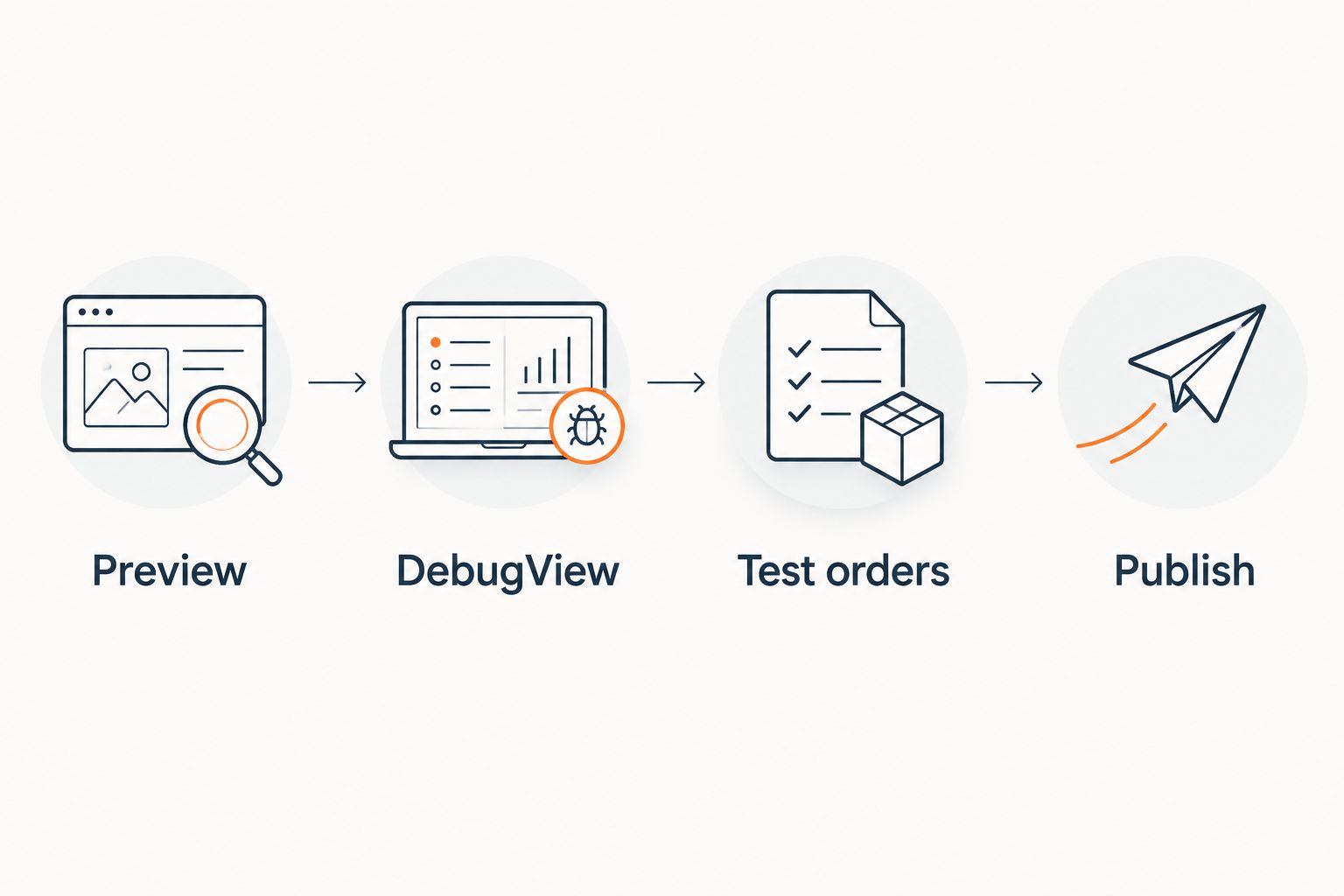
- Select Preview in Tag Manager. In GA4, open Admin, then DebugView. Confirm that debug mode is active for your test device; Tag Assistant can enable it during a connected debugging session.
- Complete 3 test orders covering curbside pickup, delivery, and a cart containing a weighted grocery item. These are validation scenarios, not a required GA4 minimum. Use your approved testing process rather than creating unintended customer orders.
- Inspect each
purchaseevent. Confirm thattransaction_idis stable and unique to that order,currencyis correct, anditemscontains the purchased products rather than an empty array. - Reload the confirmation page 2 times and revisit it through your normal order-history route. Check whether the implementation emits another purchase. Prevent repeated purchase sends at the source instead of relying solely on downstream deduplication.
- Test the consent choices your site offers, then check checkout attribution across domains. Record the outcomes in your 2026 QA log.
- When the checks pass, select Submit in Tag Manager, name the version, describe the changes, and select Publish. Verify the published version outside Preview mode.
Expected result: Production receives the intended events without repeat purchase sends, and your test orders can be traced to their analytics transaction identifiers.
Standard GA4 reporting is not instantaneous. Google documents processing delays of 24–48 hours for data processing; use DebugView and Realtime for immediate checks before evaluating processed ecommerce reports.
The validation sequence separates collection from reporting. Follow it in order so a reporting delay does not send your team back to editing a working tag.
Track refunds when grocery orders change
A confirmed grocery order is not always the final fulfilled basket. Substitutions, canceled items, and weighted goods require an explicit adjustment policy.
For your 2026 rollout, use the recommended refund event for genuine refunds. Do not resend purchase whenever staff edits an order.
- Define the qualifying order-system action: a completed refund, not a proposed substitution or an unapproved adjustment.
- Send
refundwith the originaltransaction_id. For item-level refunds, include the affected items and quantities according to Google's refund specification. - If the adjustment happens after the shopper leaves, use a developer-managed server integration rather than depending on a confirmation-page visit. Google's Measurement Protocol supports server-sent events; keep its API secret off the public website.
- Reconcile the test refund against the order record and analytics event. Keep business reporting tied to the order system because browser analytics does not capture every transaction.
Expected result: Refund activity references the original order without creating another purchase. This workflow still requires development; it is not established by installing the base Google tag.
Troubleshooting
Pageviews arrive, but purchases do not
Inspect the confirmed-order action in Tag Assistant. If there is no purchase data-layer event, fix the storefront implementation. If the event exists, check the trigger name, measurement ID, consent state, and mapped variables.
Purchases appear more than once
Check for a platform integration and a Tag Manager tag sending the same purchase. Also test confirmation-page reloads and order-history visits. Keep one authoritative purchase sender and use the same order identifier consistently.
Revenue or products are missing
Inspect the outgoing event payload, not just whether the tag fired. Confirm that items is an array with valid item objects, value is numeric, and currency accompanies monetary values. Fix malformed data before editing reports.
Checkout appears as a referral
Verify cross-domain configuration and that the participating checkout pages use the intended property. If a payment provider interrupts attribution, review List unwanted referrals under the web stream's tag settings. Excluding a referral does not repair missing tags or broken cross-domain linking.
Events appear in DebugView but not reports
Allow for processing before changing a working implementation. Check date ranges, reporting time zone, and active data filters. Consent choices, browser restrictions, and blocking software also make analytics totals differ from order-system totals.
Customize your workflow
Once collection works, build a funnel using view_item, add_to_cart, begin_checkout, and purchase. Compare device categories and fulfillment methods using event data your implementation actually sends.
Add a nonpersonal store identifier when regional locations share a storefront. Register appropriate event-scoped custom dimensions in GA4 before expecting those fields in reporting, and avoid turning individual order identifiers into high-cardinality reporting dimensions.
For Localexpress grocery ecommerce, agree on the reporting contract with the implementation team before expanding tracking across website, app, and kiosk channels. A web stream does not automatically measure a branded mobile app or an in-store kiosk.
Keep emails, phone numbers, delivery addresses, and payment credentials out of GA4. Review URLs and search terms too: personal information can enter tracking through query strings even when your event parameters look clean.
FAQ
How do I connect Google Analytics 4 to my grocery ecommerce site?
Create a GA4 web stream, install a supported Google tag implementation, and send validated ecommerce events. Test the checkout and purchase payload before publishing.
Does enhanced measurement track grocery purchases automatically?
No. Enhanced measurement does not replace ecommerce events such as add_to_cart, begin_checkout, and purchase; your storefront implementation must send them.
Is Google Tag Manager better than a platform GA4 integration?
Google Tag Manager is best for teams that need control over triggers and event mapping. A documented platform integration is simpler when it already sends complete, validated ecommerce data; do not run duplicate purchase senders.
Can I assume my Localexpress website already sends GA4 purchases?
No. Confirm the supported tracking configuration and validate a completed order with the implementation team before relying on ecommerce reports.
Why does GA4 show fewer orders than my grocery order system?
GA4 measures collected analytics events, while your order system records operational transactions. Consent choices, browser blocking, missing tags, and different order definitions can produce different totals.
How should I track grocery substitutions and refunds in GA4?
Track genuine refunds with the recommended refund event and the original transaction_id. Define substitutions and other adjustments separately rather than sending another purchase for every order edit.
Can my website tracking also measure my grocery mobile app?
A website web stream does not automatically measure a mobile app. Configure app-specific measurement and agree on consistent event definitions before combining channel reporting.
One last thing
The confirmation page is not your financial ledger. For your 2026 launch, assign an owner to compare sampled analytics transactions with confirmed orders and subsequent refunds after tracking changes. A working tag can still report the wrong business milestone.